Your site is dragging. It’s been three days since you messaged support about a simple SSL glitch, and you’re still paying a “premium” for hardware that feels like it belongs in a museum.
It’s time to move. But that nagging “what if I break it?” feeling is real. In 2026, while AI-driven migration tools have made the process smoother, roughly 40% of manual migrations still see a dip in traffic due to sloppy execution.
The good news? Moving your site shouldn’t feel like open-heart surgery. If you follow a proven framework, you can jump to a faster, better host without losing a single visitor.
Why 2026 is the Year of the “Smart Migration”
In the past, migration was about dragging folders and praying. Today, it’s about Infrastructure-as-Code and Automated Validation. Most elite hosts now offer AI-powered “Pre-Flight Checks” that scan your environment for version conflicts before you even click “move.”
5 Signs You’ve Outgrown Your Current Host
- Lags Despite Optimization: You’ve optimized your images and utilized edge caching, but your Core Web Vitals are still in the red. The problem is the “noisy neighbor” on your shared server.
- Support Ghosting: If a support bot is the only “person” you can talk to when your site is down, you’re in the wrong place.
- Security Gaps: In an era of sophisticated AI-generated malware, “basic” firewalls aren’t enough. You need proactive, real-time threat hunting.
- Scaling Friction: If your site crashes the moment a social post goes viral, your host’s “auto-scaling” is a myth.
- Cost vs. Value: You’re paying 2024 prices for 2022 performance.
Choosing Your Migration Method
| Method | Effort Level | Time to Live | Best For |
| AI-Managed Service | Low | 12–24 Hours | Most business owners. Let the host’s AI/Team do the heavy lifting. |
| Specialized Plugins | Medium | 2–4 Hours | WordPress power users who want a “package and deploy” experience. |
| Manual (SSH/FTP) | High | 4–6 Hours | Developers who need granular control over every configuration file. |
The Step-by-Step “Zero-Downtime” Blueprint
Step 1: The “Pre-Flight” Audit & Backup
Before touching a single file, take a snapshot. In 2026, we don’t just backup files; we backup the entire environment container.
- Files: All media, themes, and scripts.
- Database: Your site’s literal brain.
- Emails: Don’t forget your IMAP folders and records!
Step 2: The Staging Setup
Set up your new hosting account but do not change your DNS yet. Use a staging URL (provided by the new host) to “dry run” the site. Does the checkout work? Do the fonts load? This is your safety net.
Step 3: Data Transfer
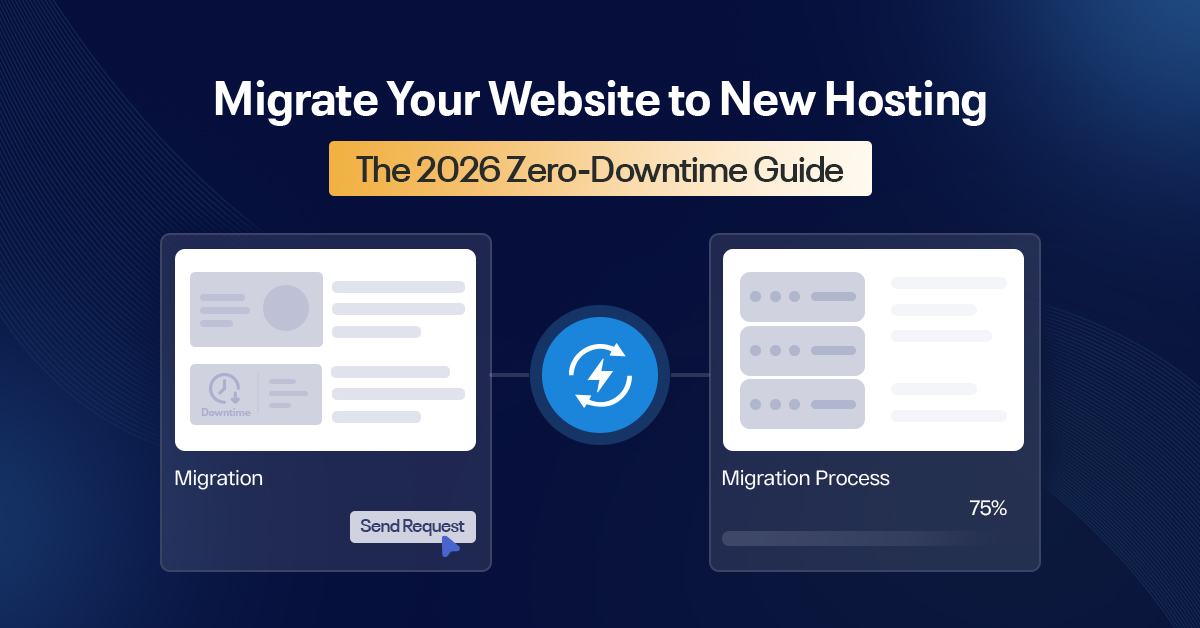
Move your data using your chosen method. If you’re using an AI-managed service, this is where you sit back and watch the progress bar. If manual, you’ll be importing your SQL database and updating your wp-config.php or environment variables.
Step 4: The DNS “Handshake”
This is the “Zero Downtime” secret. By keeping your old host active while you point your Nameservers or A Records to the new host, visitors will gradually transition to the new server as the DNS propagates.
Step 5: Post-Migration SEO Audit
Check your redirects. Ensure your SSL is active immediately. Use Google Search Console to monitor for any 404 errors that might have crawled out of the woodwork.
FAQ
1) Do I need to backup my website before migrating?
Absolutely. Think of it as insurance. Even with the best AI tools, a backup ensures that if something goes sideways (like a database corruption), you can restore your business in minutes rather than starting from scratch.
2) Will there be any downtime?
If you follow the “Parallel Hosting” method (keeping both hosts active during the move), you can achieve 99.9% zero downtime. Visitors will simply switch from the old server to the new one as DNS records update across the globe.
3) Does website migration affect SEO?
It shouldn’t—if done right. In fact, moving to a faster host often boosts your rankings. However, failing to set up proper 301 redirects or breaking your URL structure is the fastest way to lose your spot on page one.
4) Can I migrate a website on my own?
Yes, especially with modern 2026 migration plugins. However, if your site has a massive database or custom-coded functionality, a professional migration service is a safer bet to avoid technical debt.
5) How much does website migration cost?
Most top-tier hosts in 2026 offer one free professional migration to get you through the door. If you hire a specialist for a complex enterprise move, expect to pay anywhere from $200 to $1,000+ depending on the complexity.
6) How long does the process take?
The technical move usually takes 2–6 hours. However, “DNS Propagation” (telling the whole internet where you moved) can take anywhere from 1 to 24 hours to fully stabilize worldwide.
7) What is the best way to migrate a website?
For 90% of users, the Managed Migration provided by your new host is the best balance of safety and speed. They have the tools and the “eyes on glass” to ensure nothing breaks.
Migration isn’t just a technical chore; it’s an upgrade for your business. Faster load times in 2026 aren’t a luxury, they are the barrier to entry. Plan carefully, backup religiously, and don’t be afraid to let the experts handle the heavy lifting.
Ready to see how fast your site could be?
Would you like me to help you draft a pre-migration checklist specific to your website’s platform (e.g., WordPress, Shopify, or a custom stack)?